MIPI software pack installation User Guide
References
Document reference |
UG034 |
Document revision |
C |
Generation date |
23 Oct. 2026 |
Written by |
F. DESCAMPS |
22 Oct. 2026 |
Validated by |
- |
- |
Approved by |
K. TOUTAIN |
23 Oct. 2026 |
Related documents:
UG026MIPI-A1 Interface Board UserGuideUG028MD-MZ-I313 UserGuideUG033MIPI Viewer UserGuideUG035DB-MIPI-A1 Driver UserGuideUG032MD-MZ-I313 Driver UserGuide
Abbreviation table
CSI |
Camera Serial Interface |
DKMS |
Dynamic Kernel Module Support |
GPU |
Graphical Processing Unit |
MIPI |
Mobile Industry Processor Interface |
SSH |
Secure Shell Protocol |
USB |
Universal Serial Bus |
Introduction
This guide explains how to install the MIPI software pack on a Raspberry Pi 4, a Raspberry Pi 5 or an NVIDIA Jetson Orin Nano developer kit: the Linux driver of your MIPI board, the device tree overlays that declare it to Linux, MIPI Viewer, the application that shows its video, and libmipi, the library MIPI Viewer uses.
The driver is managed by DKMS, so it is rebuilt automatically after each Linux update.
Note
Keep the Raspberry Pi or Jetson connected to the internet during the entire installation. The system needs to download dependency packages.
Prerequisites
One of:
a Raspberry Pi 4 or Raspberry Pi 5 running Raspberry Pi OS Trixie 64-bit, with desktop
an NVIDIA Jetson Orin Nano developer kit running Jetson Linux R39 (Ubuntu 24.04)
The MIPI boards connected to its CSI connectors, with the Raspberry Pi or Jetson switched off
Internet connection
The packages provided by FullScale:
Package |
Contents |
Needed |
|---|---|---|
|
Linux driver of the MIPI-A1 Interface Board |
With a MIPI-A1 Interface Board |
|
Linux driver of the MD-MZ-I313 |
With an MD-MZ-I313 |
|
Device tree overlays of the MIPI boards, for the Raspberry Pi |
On a Raspberry Pi |
|
Device tree overlays of the MIPI boards, for the Jetson |
On a Jetson |
|
Library used by MIPI Viewer |
Always |
|
MIPI Viewer |
Always |
Packages installation
To install the packages, please follow the steps below:
Copy the packages to the Raspberry Pi or Jetson (using SSH or USB stick).
Open a terminal in the folder that holds them, and move them to a folder in
/tmpto prevent apt warnings:$ mkdir /tmp/mipi-packages $ mv ./*.deb /tmp/mipi-packages/
Install the packages:
$ sudo apt install /tmp/mipi-packages/*.deb
The installation will automatically pull in any required dependencies from the internet, and build the drivers.
To update the software pack, install the new packages the same way.
Configuration
Linux must be told which MIPI board is on which CSI connector, so that the board’s driver loads. This is done once, after the first installation.
On a Raspberry Pi
Edit the configuration file:
$ sudo nano /boot/firmware/config.txt
At the very end of the file, add
[all]and one line per MIPI board, from the table below. For example, for a MIPI-A1 Interface Board on a Raspberry Pi 4:[all] dtoverlay=db-mipi-a1
Connector
Line
Raspberry Pi 4
dtoverlay=db-mipi-a1Raspberry Pi 5, CAM/DISP 1
dtoverlay=db-mipi-a1Raspberry Pi 5, CAM/DISP 0
dtoverlay=db-mipi-a1,cam0The lines are for the MIPI-A1 Interface Board. For an MD-MZ-I313, write
md-mz-i313in place ofdb-mipi-a1.A Raspberry Pi 5 with a MIPI-A1 Interface Board on CAM/DISP 0 and an MD-MZ-I313 on CAM/DISP 1 takes both lines:
[all] dtoverlay=db-mipi-a1,cam0 dtoverlay=md-mz-i313
Important
Leave the rest of the file as it is. In particular,
dtoverlay=vc4-kms-v3denables the GPU, which MIPI Viewer needs.Save the file (Ctrl+o, then Enter, then Ctrl+x).
Reboot the Raspberry Pi:
$ sudo reboot
On a Jetson Orin Nano developer kit
The MIPI boards are selected with Jetson-IO, under its header 2, Jetson 22pin CSI Connector. It lists one entry per combination of boards on the two CSI connectors, CAM0 and CAM1:
MIPI boards |
Jetson-IO entry |
|---|---|
One, on CAM0 or on CAM1 |
FullScale DB-MIPI-A1 on CAM0, FullScale DB-MIPI-A1 on CAM1 |
The same on both connectors |
FullScale DB-MIPI-A1 on CAM0 and CAM1 |
A different one on each connector |
FullScale DB-MIPI-A1 on CAM0 and MD-MZ-I313 on CAM1 |
The examples are for the MIPI-A1 Interface Board (DB-MIPI-A1). The MD-MZ-I313 has the same entries.
List the entries:
$ sudo /opt/nvidia/jetson-io/config-by-hardware.py -l
The FullScale entries are under header 2, beside the other entries installed:
Header 1 [default]: Jetson 40pin Header
  Available hardware modules:
  1. Adafruit SPH0645LM4H
  ...
Header 2: Jetson 22pin CSI Connector
  Available hardware modules:
  1. Camera IMX219 Dual
  ...
  10. FullScale DB-MIPI-A1 on CAM0
  11. FullScale DB-MIPI-A1 on CAM0 and CAM1
  12. FullScale DB-MIPI-A1 on CAM0 and MD-MZ-I313 on CAM1
  13. FullScale DB-MIPI-A1 on CAM1
  14. FullScale MD-MZ-I313 on CAM0
  15. FullScale MD-MZ-I313 on CAM0 and CAM1
  16. FullScale MD-MZ-I313 on CAM0 and DB-MIPI-A1 on CAM1
  17. FullScale MD-MZ-I313 on CAM1
Header 3: Jetson M.2 Key E Slot
  No hardware configurations found!
Select yours, for example for a MIPI-A1 Interface Board on CAM0:
$ sudo /opt/nvidia/jetson-io/config-by-hardware.py -n 2="FullScale DB-MIPI-A1 on CAM0"
Reboot the Jetson:
$ sudo reboot
Usage
Once the system has rebooted, start MIPI Viewer from the applications menu (FullScale Tools on a Raspberry Pi), or with this command:
$ mipi-viewer
The window of the MIPI board opens. With two boards, the viewer first asks which one to open. If it says No MIPI board found, check the configuration above and the board’s connection.
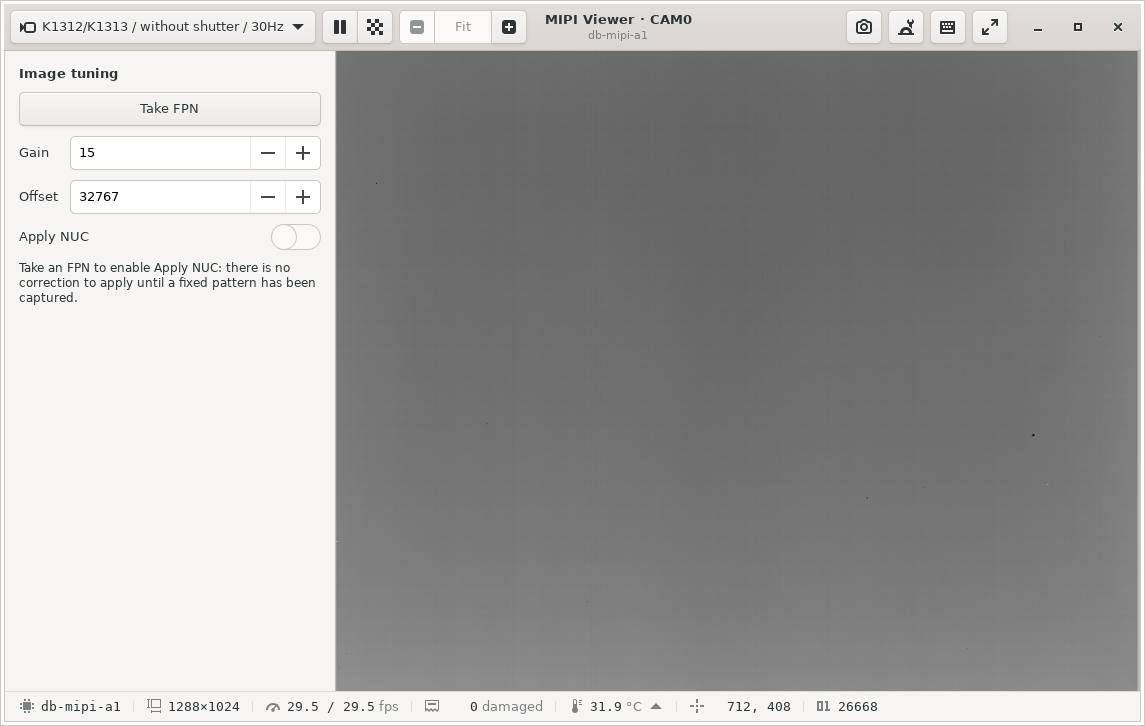
Figure 1: MIPI Viewer showing the video of a setup
Refer to UG033 for the use of MIPI Viewer.
Revision history
Date |
Author(s) |
Version |
Comments |
|---|---|---|---|
04/2026 |
F. DESCAMPS |
Rev. A |
First document release |
07/2026 |
F. DESCAMPS |
Rev. B |
Add a compatibility warning across Raspberry Pi versions |
10/2026 |
F. DESCAMPS |
Rev. C |
Raspberry Pi 5 and Jetson Orin Nano developer kit, overlays package, two MIPI boards |
FullScale reserves the right to modify the contents and specifications of this user guide on the basis of technical development of the product, without prior notice.